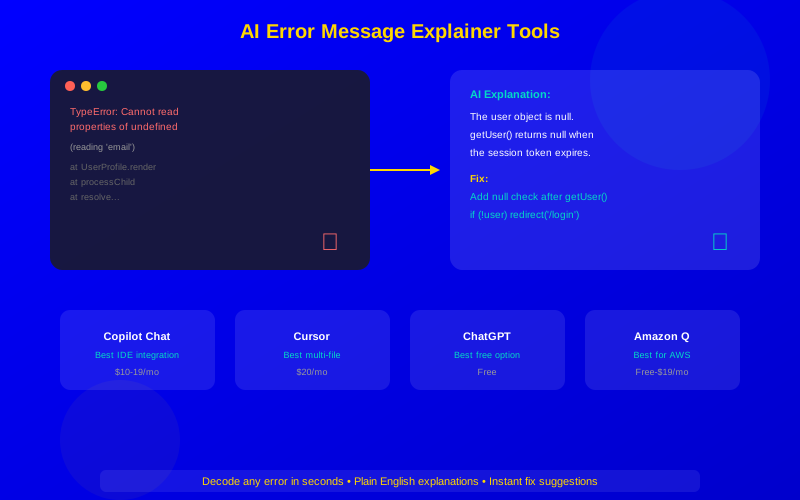
AI Error Message Explainer Tools: Decode Any Error Instantly
Stop wasting time Googling error messages. These AI tools explain errors in plain English and suggest fixes in seconds. Compare the best options for 2026.
AI error explainers turn cryptic error messages into plain-English explanations with fixes.
GitHub Copilot Chat, Cursor, and ChatGPT are the top choices for error explanation in 2026.
The best results come from pasting the full error message plus relevant code context.
Junior developers benefit most—AI bridges the experience gap for reading error messages.
Free options exist: ChatGPT, Amazon Q free tier, and Codeium all explain errors well.
Every developer knows the feeling: a wall of red text appears in your terminal, and you have no idea what it means. Cryptic error messages, stack traces with dozens of frames, and vague warnings that point everywhere except the actual problem.
AI error message explainers solve this problem. Paste any error, and they tell you what went wrong, why it happened, and how to fix it—in plain English. This guide compares the best tools and shows you how to use them effectively.
Why AI Error Explainers Changed Everything
AI error explainers reduce error comprehension time from minutes to seconds
Before AI tools, debugging an unfamiliar error meant one of three things: Google it, read the docs, or ask a senior developer. All three take time. All three pull you out of your flow.
ADVERTISEMENT
AI error explainers are different. They:
Understand your specific code: They analyze your code alongside the error, not just the error text
Explain in plain English: No jargon, no assumptions about what you already know
Suggest specific fixes: Not generic advice—actual code changes for your situation
Work instantly: Answers arrive in seconds, not minutes
Learn from context: The more of your project they can see, the better their answers get
"I used to spend 20 minutes Googling every new error type. Now I paste it into Copilot Chat and get a perfect explanation in 10 seconds. It's like having a senior developer sitting next to me all day."
ADVERTISEMENT
— Alex Rivera, Junior Developer
Best AI Error Explainer Tools Compared
Here's how the top tools stack up for error message explanation specifically:
Tool
Error Explanation Quality
Code Context
Fix Suggestions
Price
GitHub Copilot Chat
Excellent
Full repo
One-click apply
$10-19/mo
Cursor
Excellent
Full repo
Inline apply
$20/mo
ChatGPT (free)
Very Good
Pasted only
Copy/paste
Free
Amazon Q Developer
Very Good
Project-level
One-click apply
Free-$19/mo
Codeium
Good
File-level
Inline apply
Free-$12/mo
JetBrains AI
Very Good
Project-level
One-click apply
$10/mo
Sourcegraph Cody
Very Good
Full repo
Copy/paste
$9-19/mo
Phind
Good
Pasted only
Copy/paste
Free-$15/mo
GitHub Copilot Chat: Best IDE Integration
GitHub Copilot Chat is the fastest way to explain errors if you're already in VS Code or JetBrains. Here's why it excels:
ADVERTISEMENT
How It Works
When an error appears in your terminal or editor, you can:
Select the error text
Right-click and choose "Explain with Copilot"
Get a plain-English explanation with a suggested fix
Click "Apply" to implement the fix
Copilot reads your entire project for context. So when it explains an error about a missing import, it knows which file should be imported and what the correct path is.
ADVERTISEMENT
Best Prompts for Error Explanation
These prompts get the best results from Copilot Chat:
"Explain this error and fix it" — Best all-around prompt
"Why does this fail?" — With code selected
"This worked yesterday. What changed?" — For regression bugs
"Explain this error like I'm a beginner" — For learning
Cursor: Best for Complex Errors
Cursor's error explanation shines when errors involve multiple files. Its Composer feature traces errors across your entire codebase.
ADVERTISEMENT
Multi-File Error Tracing
When a React app crashes with "Cannot read property of undefined," the real cause might be three files away. Cursor follows the data flow from the error back to where the undefined value originated. It then explains the entire chain.
This makes Cursor the best choice for complex errors in large codebases where a single error has deep root causes.
ADVERTISEMENT
Free AI Error Explainers
You don't need to pay for excellent error explanations. Here are the best free options:
ChatGPT
ChatGPT's free tier handles error explanations well. The trade-off: you need to copy and paste your error and relevant code into the browser. There's no IDE integration and no automatic code context.
ADVERTISEMENT
For best results with ChatGPT, paste:
The full error message
The relevant function or file
What you expected to happen
Amazon Q Developer Free Tier
Amazon Q's free tier includes error explanation with IDE integration. It's the best free option for developers who want in-editor error analysis without paying. Limited to 50 interactions per month on the free plan.
ADVERTISEMENT
Codeium Free
Codeium offers unlimited error explanations on its free tier. Code context is limited to the current file, which means complex multi-file errors get less accurate explanations. But for single-file errors, it works great.
How to Get the Best Error Explanations
AI error explainers are only as good as the context you give them. Follow these tips:
ADVERTISEMENT
1. Include the Full Error
Don't truncate error messages. The last line might seem redundant, but AI uses every piece of information. Include:
The error type and message
The full stack trace
Any preceding warnings
The command that triggered the error
2. Add Relevant Code
If the error points to line 42, don't just share line 42. Share the entire function or at least 20 lines of surrounding code. AI needs context to understand what your code is trying to do.
ADVERTISEMENT
3. Describe What You Expected
Tell the AI what should have happened. "This function should return a list of users, but instead I get this error" gives AI the context to understand the intent behind your code.
Providing full error context transforms AI from generic advice to specific, actionable fixes
4. Mention Your Environment
Some errors depend on your Node version, OS, or framework version. Mention these when relevant. "I'm running Node 20 on Windows with Next.js 14" helps AI narrow down version-specific issues.
ADVERTISEMENT
Common Error Types AI Explains Best
AI excels at certain error types. Here are the ones where AI saves the most time:
Error Type
AI Accuracy
Time Saved
Example
Type errors
95%
5-10 min
TypeError: Cannot read property 'x' of undefined
Import/module errors
90%
5-15 min
Module not found, circular dependency
Configuration errors
85%
10-30 min
Webpack, ESLint, TypeScript config issues
API errors
90%
5-20 min
CORS, 401 unauthorized, rate limits
Database errors
85%
10-30 min
Connection refused, query syntax, migrations
Build errors
80%
10-45 min
Compilation failures, missing dependencies
Runtime crashes
85%
15-60 min
Segfaults, out of memory, infinite loops
Using AI Error Explainers to Learn
AI error explainers aren't just productivity tools—they're learning tools. Here's how to learn from every error:
ADVERTISEMENT
The Learning Loop
See the error: Don't skip to asking AI immediately. Try to guess what it means first
Form a hypothesis: "I think this is because X"
Ask AI: See if your hypothesis was right
Read the explanation: Understand the WHY, not just the fix
Remember the pattern: Next time you see a similar error, you'll recognize it
After a few months of this loop, you'll find yourself needing AI less for common errors. You'll have built up the pattern recognition that experienced developers have.
Team Strategies for Error Explanation
Teams can get even more value from AI error explainers:
ADVERTISEMENT
Shared prompts: Create a team document of effective debugging prompts
Error pattern database: When AI explains a tricky error, document it for the team
Onboarding tool: Point new team members to AI for your project's common errors
Post-mortem analysis: Use AI to help explain and document production incidents
Getting Started
Here's your action plan for AI error explanation:
Today: Try pasting your next error into ChatGPT (free) or Copilot Chat
This week: Compare 2-3 tools on the same error to see which gives the best explanation
This month: Set up IDE integration so error explanation is one shortcut away
Start simple. Paste your next error into AI and see how fast you get an answer. Once you see the time savings, you'll never go back to Googling errors.
Major AI tools handle errors in 20-30+ languages effectively. Python, JavaScript, Java, C#, Go, and Rust have the best support. For less common languages, AI can still explain the general pattern, but specific fix suggestions may be less accurate. Always verify fixes in niche languages.