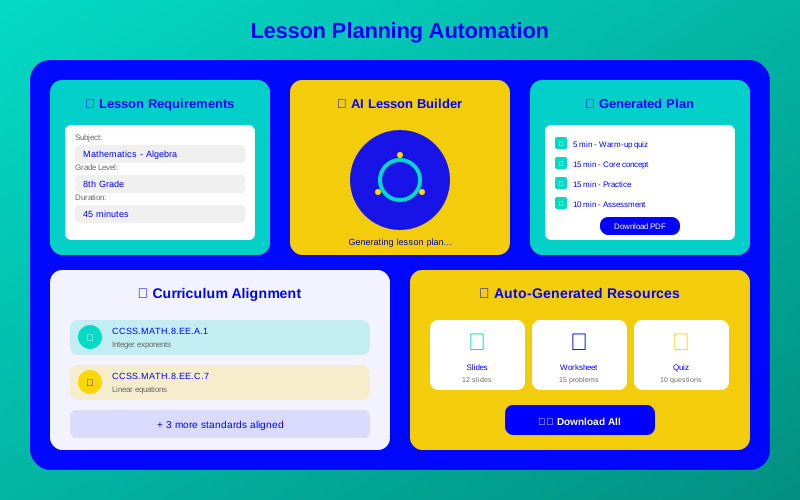
One-off AI lesson planning saves time. Automation multiplies those savings. When tools work together without constant input from you, planning shifts from a daily burden to a background process.
This guide shows you how to build lesson planning workflows that run automatically. Connect the right tools with the right templates, and you'll plan an entire week in the time it used to take to plan one day.
What You Will Learn:
How to connect AI tools into automated workflows
Template systems that eliminate repetitive prompting
Integration with Google Classroom, Canvas, and other LMS platforms
Templates are the foundation of automation. Create them once, reuse forever. Here's how to build an effective template library:
Prompt Templates
Save your best AI prompts. Instead of writing from scratch, fill in blanks:
"Create a [DURATION] lesson on [TOPIC] for [GRADE LEVEL] students. Include: 1) Learning objectives aligned to [STANDARD], 2) A warm-up activity, 3) Main instruction with [VISUAL/KINESTHETIC/AUDITORY] elements, 4) Guided practice, 5) Independent practice, 6) Assessment questions. The lesson should accommodate students at varied reading levels."
Store these in a document you can copy from. Some tools like MagicSchool let you save prompts directly in the platform.
Document Templates
Create Google Docs or Word templates for:
Daily lesson plans with your school's required format
Unit overview documents
Student handout layouts
Parent communication formats
When AI generates content, paste it into templates instead of reformatting every time.
Level 2: Connect Your Tools
Integration means tools talk to each other. Content flows from creation to distribution without manual copy-pasting.
MagicSchool to Google Docs
MagicSchool exports directly to Google Docs. Set up a folder structure:
Each export goes to the right folder automatically
Share the parent folder with your aide or co-teacher
Canva to Google Classroom
Canva for Education integrates directly with Google Classroom. Create a presentation or handout, then:
Click "Share" → "More"
Select "Google Classroom"
Choose your class and assignment type
The material posts automatically
Using Zapier for Custom Automation
Zapier connects apps that don't have native integration. Example workflow:
Trigger: New file added to "This Week's Lessons" Google Drive folder
Action: Create Google Classroom assignment with that file attached
Action: Send Slack message to team: "New lesson posted for [Class Name]"
This turns file upload into automatic distribution with zero extra clicks.
Level 3: Full Automated Workflow
For maximum efficiency, build an end-to-end pipeline. Here's a proven weekly workflow:
A complete automated planning workflow from generation to distribution
Sunday Planning Session (45 Minutes Total)
Minutes 1-15: Generate all 5 daily lessons using MagicSchool with saved prompts
Minutes 16-30: Quick review and customize. Add your personal touches.
Minutes 31-40: Generate Canva materials using AI design suggestions
Minutes 41-45: Export and schedule in Google Classroom
The rest happens automatically through your integrations. Compare this to the 5+ hours many teachers spend planning each week.
Common Automation Mistakes to Avoid
Over-automating too fast: Start simple. Add complexity only when simple works well.
No quality checks: Always review AI output before students see it.
Ignoring learning curve: Budget time to learn tools properly. Rushed setup creates problems later.
One tool for everything: Different tools excel at different things. Combine strategically.
Getting Started This Week
Don't wait until summer break to set up automation. Start small today:
Today: Create one prompt template in a Google Doc
This week: Use that template for 3 different lessons
Next week: Set up one tool integration (Canva → Google Classroom is easiest)
This month: Build your complete Level 1 template library
For more on streamlining your teaching day beyond planning, see our guide on automating classroom tasks.
Planning on Autopilot
Automation isn't about replacing your judgment. It's about eliminating the repetitive steps that consume your time. With the right workflow, lesson planning becomes a 45-minute Sunday session instead of a nightly grind.
Start with templates. Add integrations as you're ready. Build toward a workflow that handles the boring parts automatically, so you can focus on what actually matters: teaching.
Automation means creating systems that do repetitive work with minimal input. For lesson planning, you set up tools once and they generate plans, create materials, and distribute resources automatically based on templates you define.